Trading Bot — User Manual
This page explains the current MVP workflow, configuration logic, and operating options for the TERESIUS AI trading bot.
Bot for Automated Cryptocurrency Trading
TERESIUS_AI_BOT
User Manual
Introduction
The TERESIUS_AI_BOT automated cryptocurrency trading bot is designed for trading digital assets on supported cryptocurrency exchanges. It is scalable in terms of exchange selection and trading pair selection. At present, the platform supports a limited list of exchanges, and additional exchanges may be added over time. For each supported exchange, the bot is intended to work with the available trading pairs supported by that exchange and by the bot version provided through our platform.
The main features of the bot currently implemented on our platform are as follows.
- A trader who rents or subscribes to the bot downloads a working version of the bot to their local computer or server.
- Secret keys for each specific exchange are stored and entered only by the trader on their own computer or server.
- The trader selects the cryptocurrency pair on a supported exchange in the bot’s configuration window on their local computer or server.
- The bot visualizes trading activity in its own browser-based interface tied to the bot application.
- The trader can stop or pause the bot at any stage using the bot’s graphical options.
- Periodically, the trader should update the bot or related parameter files, because the trading model and configuration parameters may be updated on the server over time as market conditions evolve. If updates are not installed, the bot may continue to operate, but its effectiveness may change.
- On the trader’s local computer or server, several bot instances may run simultaneously for different exchanges and/or different cryptocurrency pairs. Specific details of multi-trading operation are described below.
Operating Options and Configuration Files (Windows 10+)
After registering on our platform, the trader downloads the bot application into a separate folder on their local computer or server.
Important: when working in multi-trading mode across several exchanges and/or several cryptocurrency pairs, each exchange and each separate cryptocurrency pair should be placed in its own separate folder. Additional specifics of multi-trading mode are described below.
Before starting the application, the trader fills in the secret-keys configuration file for each bot instance separately:
# config.txt
##api_key = YOUR_API_KEY
##api_secret = YOUR_API_SECRET
# 1 = testnet, 0 = mainnet
testnet = 0
Enter these values exactly in the form in which the trader created the keys for the specific exchange.
On some exchanges, API keys may differ depending on the trading type, such as Spot, Margin, or Futures. In that case, the configuration file must contain the keys for the trading type the trader intends to use.
After filling in config.txt, the trader can start the bot application. For Windows, the executable file may be named in a form such as bybit_run_futures.exe, where the first word indicates the exchange name and the third indicates the trading type.
A bot browser window will then open for the user:
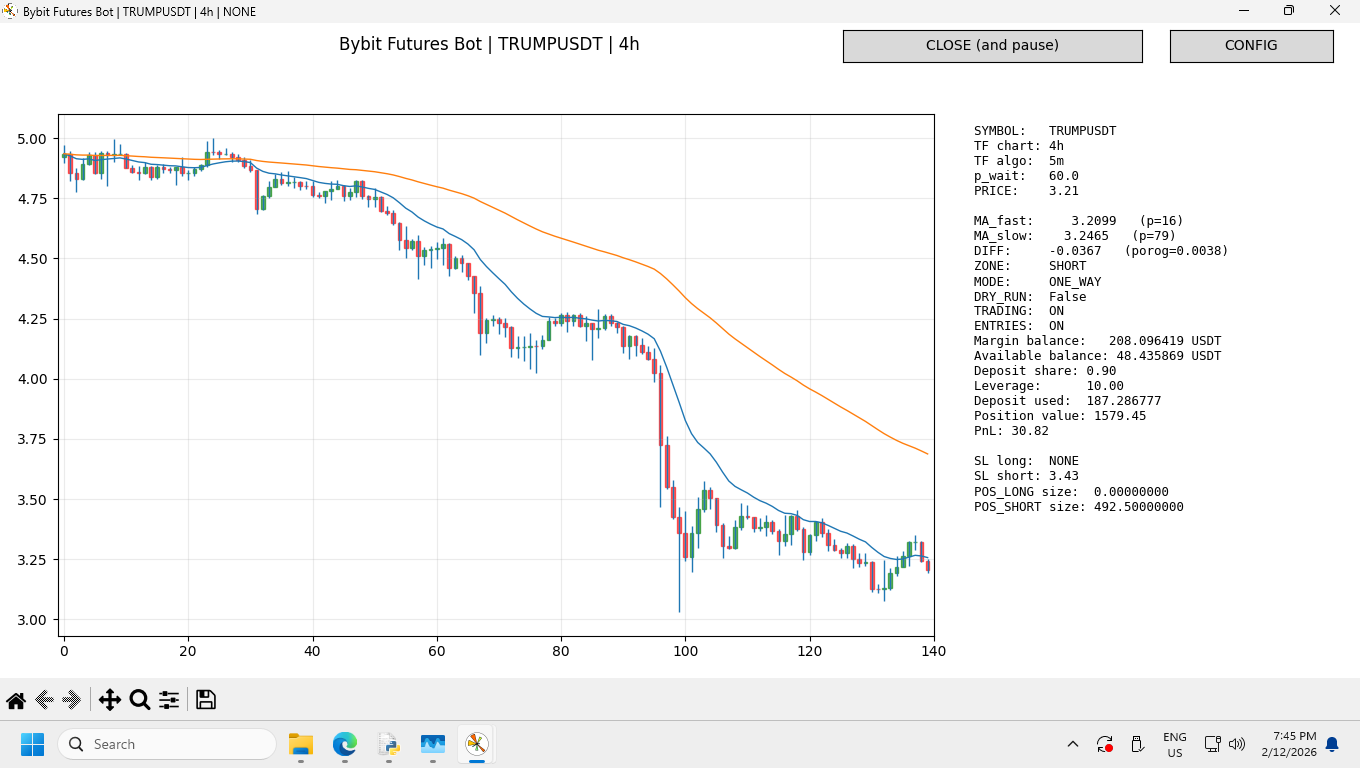
Fig. 1. Example of the bot browser window.
This window shows the bot’s operating modes and current market quotes on a specific exchange and trading type for different timeframes chosen by the trader.
Two important graphical options are implemented in the trading window when working with the bot.
1.1 First — the CONFIG option
This option allows the trader to configure trading modes and bot operating modes. After selecting this option, the trader will see the CONFIG window:
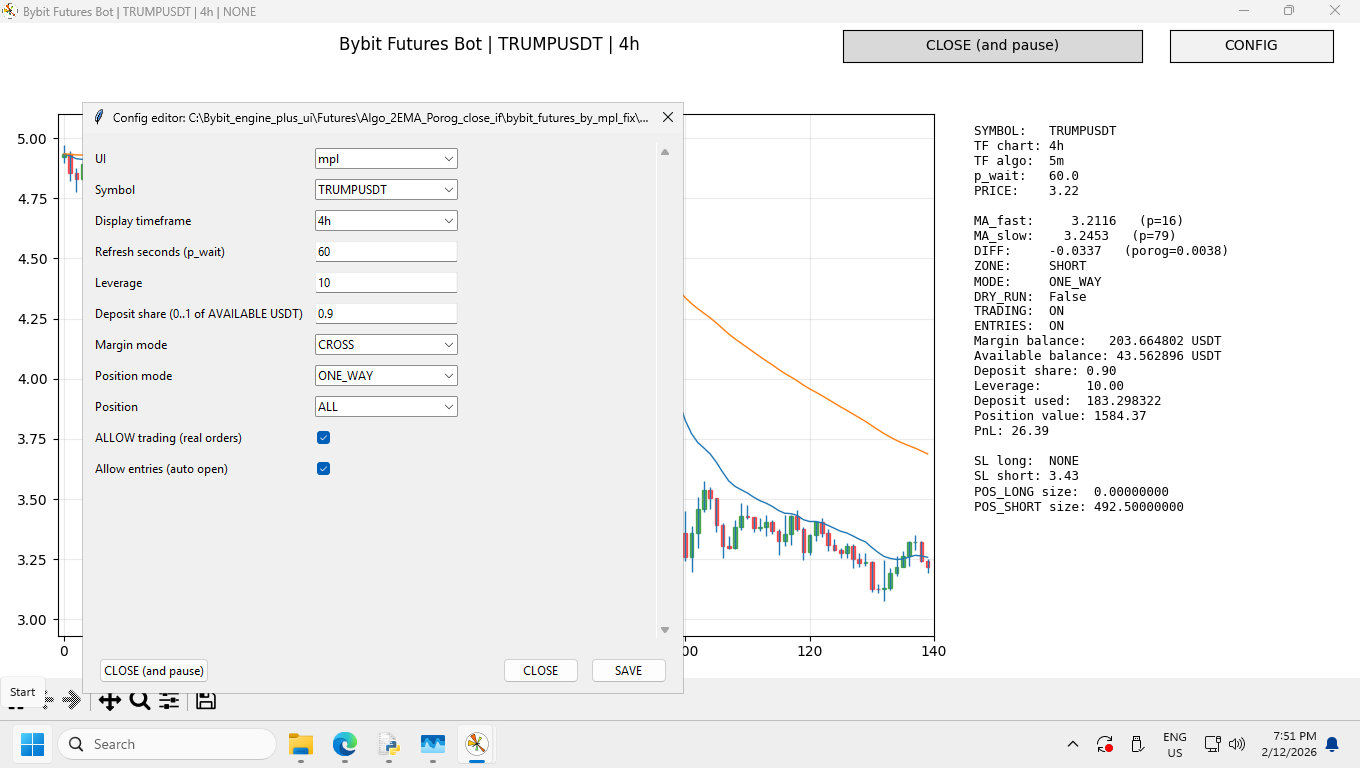
Fig. 2. CONFIG window.
In this window, all main bot operating modes are selected, including the cryptocurrency pair for viewing or trading.
Let us review the options from top to bottom.
- UI option: mpl or html. The trader can choose how trading graphics are displayed — in Matplotlib graphics (mpl) or in browser graphics (html). After selecting a graphics option, and after changing any other bot option in the configuration window, the SAVE button must be pressed to store the new operating parameters.
After selecting html, the trading chart window will appear in the trader’s browser:
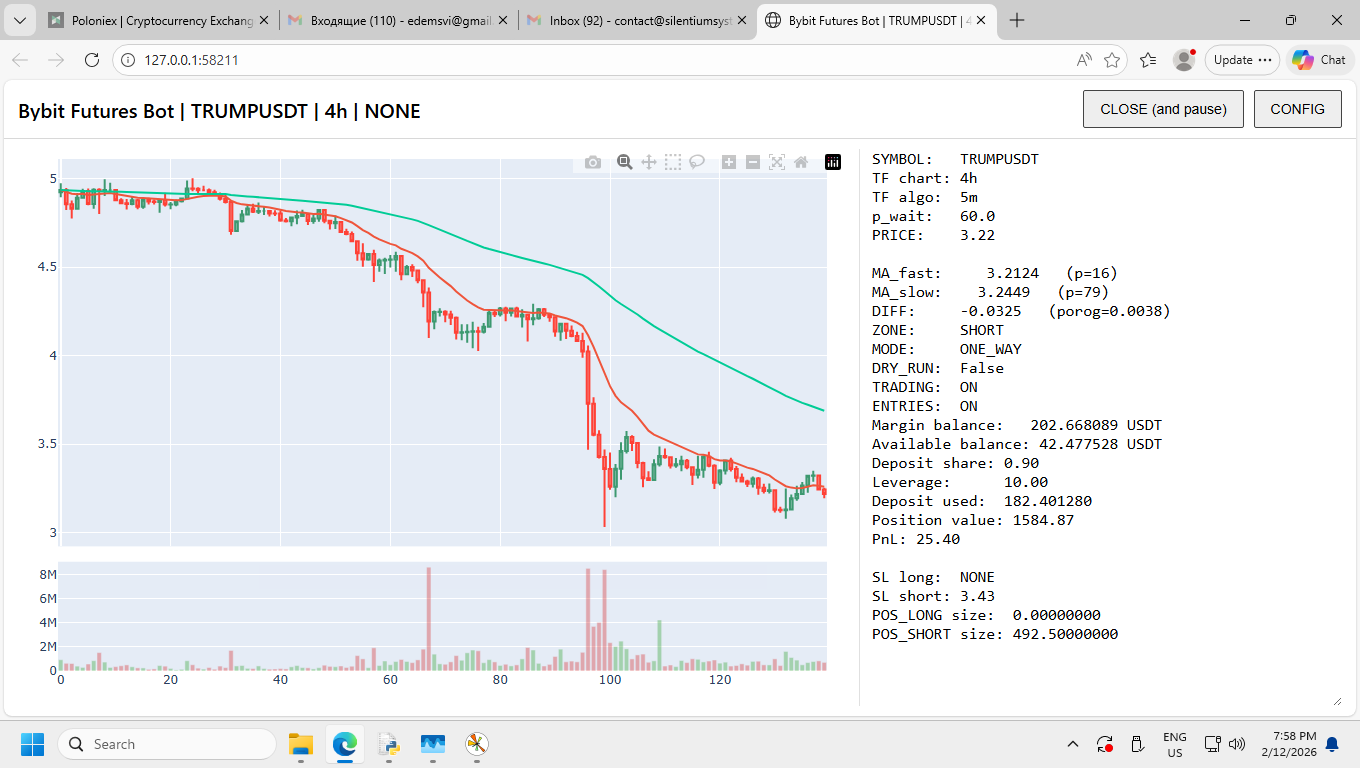
Fig. 3. Trading chart window for the html option.
- Second option — Symbol. This option allows you to select the cryptocurrency pair symbol for market viewing or for trading.
Important: if the bot has an open position for a specific cryptocurrency pair, selecting a different pair may lead to opening a position on that new pair as well, depending on the remaining deposit and other configuration settings. As noted above, each pair is best run in its own separate folder with its own separately running bot instance.
However, if there is no open position and opening positions is prohibited in CONFIG, such viewing is possible without opening new positions.
If you accidentally select a new pair while there is an open position and trading is allowed, nothing catastrophic necessarily happens, but a new position may be opened for the new pair if allowed by the available deposit and bot settings. If there is insufficient deposit, the bot window may show a related message. Even so, we recommend trading each specific pair with a separate bot application from its own folder.
- Third option — Display timeframe. The trader can choose a specific timeframe window to view the quote situation for a selected cryptocurrency pair.
- Fourth option — Refresh seconds. The trader can set the refresh rate for the graphical trading display. We do not recommend intervals that are too small. With very short intervals, negative effects may occur, depending on the exchange and the number of simultaneous bots. In particular, an exchange may rate-limit or fail to process requests. We generally recommend an interval in the range of 60–180 seconds.
- Fifth option — Leverage. This option is used for futures or margin trading. It affects both risk and trading aggressiveness. The bot itself may not impose a strict leverage limit, but we generally recommend keeping leverage within a moderate range. High leverage may introduce liquidation and margin-related risks specific to each exchange.
- Sixth option — Deposit share. This option allows you to set the share of available deposit used for trading, typically within the range 0–1.
If the leverage-to-deposit-share ratio does not allow opening a position, the bot’s chart window may display a related message. In that case, you must reduce either the deposit share or the leverage, or both. These settings may depend significantly on the selected pair and exchange.
If you trade several pairs on the same exchange and trading type, they may rely on the same available deposit or its remaining balance. Naturally, a new pair on the same exchange may require either reducing the deposit share or allocating additional funds.
- Seventh option — CROSS / ISOLATED. You can choose two trading variants: CROSS or ISOLATED. Please refer to the exchange documentation for the detailed meaning of these modes. The default is CROSS.
- Eighth option — ONE_WAY / HEDGE. You can choose either one position for the selected pair or hedging mode with two simultaneous positions for the same pair. In most cases, simultaneous positions remain relatively uncommon. The default is ONE_WAY. Many exchanges require hedging mode to be enabled separately at the exchange level.
- Ninth option — Position: ALL / LONG / SHORT. Based on the trader’s own judgment, the trader can choose one of three permissions for automatic position opening: ALL, LONG only, or SHORT only.
- Tenth and eleventh options — Allow trading / Allow entries. Trading is permitted only if both options are enabled. If Allow trading is enabled but Allow entries is disabled, market display and potential setup information may still appear, but the bot will not open positions.
- Graphical option in the trading window — CLOSE (and pause). The trader may manually intervene at any time and close an open position. After a manual close, new positions may remain blocked until the relevant configuration permissions are re-enabled, depending on the current bot logic.
- Informational lines in the trading chart. Depending on the exchange, the chart window may display a number of dynamic parameters, both for open positions and for the current market state. Examples may include current PnL, selected configuration parameters, and internal indicators such as DIFF or p. These values provide informational context regarding the current market situation and possible trade logic conditions.
Last updated: March 11, 2026